

Personalisation is the new marketing hack that allows you to sell your product to the buyers. According to the Research Gate article, personalisation drastically impacts customer loyalty toward the brand. That means, customers connect with any brand only if the brand cares for them.
What message will visitors find, how traffic moves to the next info, how the site performs, mobile view, kind of content, media quality, and many more elements, you need to customize each part as per your business personality.
If you are someone looking for a guide to customize WordPress themes for your website, then this is the golden chance for you. Even if it’s your first time, this article will explain to you each vital thing that gives you confidence while using WordPress theme DIY.
Why Customize Your WordPress Theme?
A WordPress theme is the backbone of your online brand image that you can’t ignore in this modern business world. Here are the vital reasons why you should care about customizing WordPress themes so much.
1. Your Brand Deserves More Than a Template Look
Do you agree that, after many experiments with theme colour and font, you easily see which template you used here? That happened to everyone.
Because templates are standard-made. This is not fully relevant for any business field. Whether you are a gym or gym supplement seller, you have the same type of fitness theme. And if you do lots of changes, that will destroy the UX and overall website.
To resolve all these issues, customized WordPress themes are the only solution. Here is what your business is about, elements that your users want, where you go, what competitors are lacking, and how to improve like everything. Along with that, templates also have many unnecessary cookies that you are never going to use. That reduces site performance too.
In short, Customized WordPress themes represent your business like a unique brand that your real human visitors love to use.
2. Improved User Experience = Higher Conversions
UX is the boardroom hero nobody talks about enough.
A well-customized site ensures:
- Faster navigation
- Intuitive structure
- Easy-to-find CTAs
- Seamless browsing across devices
In short, you need to know how to customize WordPress site elements that give you profit at the end.
3. SEO Gains: Because Google Loves Uniqueness
Search engines adore structure, speed, and clarity.
Image: Customization = better crawlability = better ranking momentum.
Customizing your theme allows you to:
- Clean up unnecessary scripts
- Improve site speed
- Optimize header hierarchies
- Enhance accessibility
- Strengthen internal linking
This gives your website the algorithmic sparkle it deserves.
4. Performance Optimization That Means Business
Let’s be honest, default themes ship with more baggage than a confused tourist.
Customization allows you to:
- Remove components you don’t use
- Minimize CSS/JS payload
- Implement performance-focused design choices
- Speed up your WordPress pages by seconds, and seconds matter!)
Because in digital business, speed isn’t a feature, it’s a competitive edge.
5. Security Reinforcement Through Structural Tweaks
While opening a store, do you ignore security?
Definitely not, that is the same for the cyber world. Customizing your theme can:
- Reduce vulnerabilities
- Remove outdated code
- Ensure compatibility with modern security plugins
- Lock down theme files using features like the WordPress theme editor cautiously!
A customized theme is simply harder for attackers to predict and exploit.
6. Scalability: Build a Site Ready for Tomorrow
Your business will grow, why shouldn’t your website?
Advanced theme customization gives you:
- Modular layouts
- Expandable design systems
- Integrations for future tools
- Custom post types
- Dynamic templates
Whether you’re adding product lines, launching a blog network, or integrating AI-driven features, a customized theme scales with you without breaking.
7. Better Control With the WordPress Theme Editor
The WordPress theme editor gives you hands-on access to your site’s core theme files.
Think of it as the “command center” where small code updates yield mighty results.
You can:
- Adjust PHP templates
- Edit CSS
- Modify theme functions
- Remove hardcoded design constraints.
Of course: handle with care. One wrong comma can create a digital plot twist nobody asked for. This is where seasoned WordPress development services become your insurance policy.
8. Creates a Conversion-Focused Experience
A theme should not only look good, it should sell.
Customization allows you to:
- Reorder product grids
- Place CTAs strategically
- Build landing pages that convert
- Create storytelling-led pages
- Personalize user journeys
This is where artistry meets analytics.
Because creative design without a conversion strategy is just… decoration.
9. Eliminates Plugin Dependency
For any performance, you have to add a plugin to your templates. This is a red flag for website security and performance. Too many plugins increase your website’s loading time, which Google and your users hate. But by customising a WordPress theme, you:
- Many features can be built natively
- You reduce plugin conflicts
- You increase stability and speed
- Your maintenance becomes cleaner and cheaper.
A lean website is a profitable website.
10. Future-Proofing With Professional WordPress Development Services
DIY is charming… until something breaks.
Partnering with expert WordPress development services ensures:
- Pixel-perfect customization
- Clean, maintainable code
- A theme built for performance
- Compliance with WordPress standards
- Scalability without chaos
It’s a way to build a better-performing and stronger brand presence to keep your brand alive.
Take advantage of WordPress’ latest version.
From the beginning, WordPress has been my most favorite website builder for non-techie persons. As you know, it has drag-and-drop features that make it easy to use.
In the latest version, these features go beyond all the previous WordPress basic tweaks. Now, you can control the complete design through a block-based approach with the Full Site Editing feature. This feature was introduced to eliminate transitional PHP-based themes for non-technical users like you.
Here are some key FSE components:
Site Editor
This is the central interface within the WordPress admin dashboard (Appearance → Editor) that provides a unified, visual way to manage the entire website layout, including elements previously outside the scope of the standard post/page editor.
Block Themes
These are themes built entirely using blocks and HTML templates (instead of traditional PHP files), which are required to utilize FSE features fully. Examples include WordPress’s default Twenty Twenty-Four theme and others like Neve FSE or the Ollie theme.
Global Styles
Global styles feature, driven by a theme.json configuration file. You can consider it as a rulebook for your whole website. This file helps you in defining default design settings of all website elements, like typography, color palettes, spacing, and layouts in one place. Thus, you ensure a consistent branding look across the entire site without repetitive design work.
Block-Based Editing
The entire FSE experience is built upon the foundation of the Gutenberg block editor, allowing a drag-and-drop approach to design. This includes core blocks like the Navigation block, Query Loop block (for dynamic post grids), Site Title/Logo/Tagline blocks, and more.
Powered by the Site Editor, FSE delivers a more intuitive, flexible, and future-ready website-building experience where your brand finally looks like itself, not a template. If you read till here, you are really passionate about customising your WordPress themes. That’s a good sign.
Now, we are going to dig deeper into some basic technical terms that help you to understand your WordPress website theme better.
Once you know it better, your Website edition will be the best.
Understand How WordPress Actually Works
The website has two faces. First is the backend, or you can say the dashboard, where you edit your website, and second is the frontend, which your users see.
In the backend, a few files control the overall look and user experience of a specific frontend section. So, to design that part you need to open relevant files. Here is a list of major files and what they do on WordPress:
Header.php
Controls the top section of your website, including the logo, navigation menu, and header elements. It loads across most pages to maintain consistent branding and structure.
Footer.php
Manages the bottom section of your site, such as copyright text, footer menus, widgets, and scripts. It ensures consistency and proper loading of global elements.
Single.php
Defines how individual blog posts appear on your website, including content layout, author info, comments, and metadata. It controls the presentation of each post.
Page.php
Handles the layout of standard pages like About, Contact, and Services. It determines how page content is structured without affecting blog posts.
Functions.php
Acts as the theme’s control centre. It adds features, registers menus and widgets, enqueues scripts, and modifies WordPress behaviour without changing core files.
Here it is.
Now, whenever you feel stuck or make an error in any section during the editing time, you know where to go.
So, are you ready for the real work?
Beginner Friendly: How to Customize WordPress Site Guide
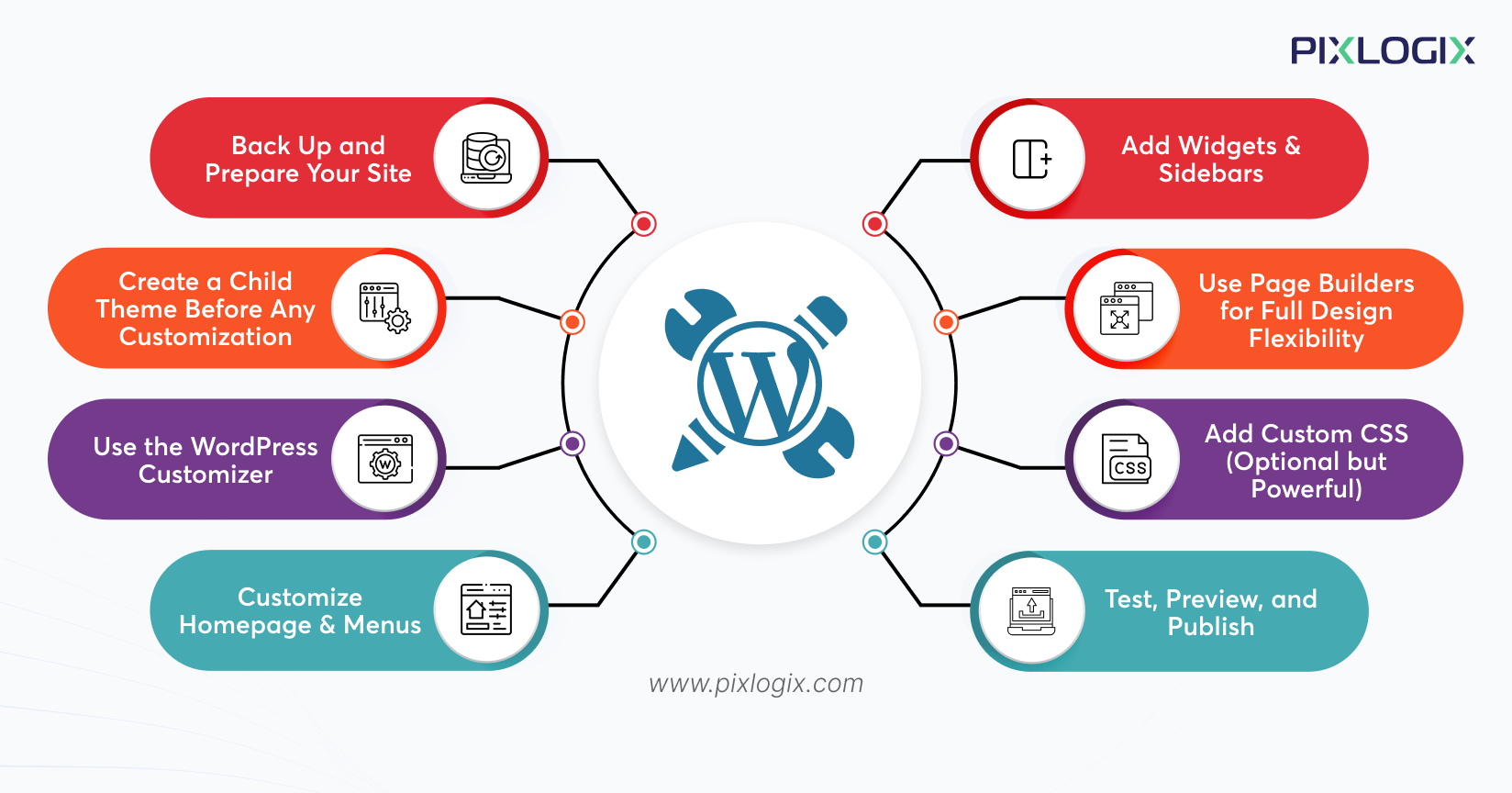
Here is the safest and beginner-friendly WordPress theme process for your business website.
Step 1: Back Up and Prepare Your Site
First things first, protect the current version of your website.
This step helps you come to this version of your website at any point in time.
This is like a safe zone in a game. A place where you can restart without losing progress after being defeated by your enemy.
To ensure a full-proof backup, you need to:
- Install a reliable WordPress backup plugin from the plugin library.
- Create a full backup (both files and database).
- Download a copy of the backup to your local system.
Update:
- WordPress core
- Installed plugins
- Active theme
Why this matters:
If anything goes wrong, you can restore your site in minutes instead of rebuilding it from scratch.
Step 2: Create a Child Theme Before Any Customization
A child theme creates a separate space to edit and safely store custom changes. This ensures that if anything goes wrong, users can revert to a previous version. So if you prefer minimal effort with maximum safety, then using a child theme is a highly beneficial and mandatory step at the same time.
Why child themes are essential:
- Parent theme updates overwrite direct changes
- Child themes preserve your custom code safely
- This is the industry-standard approach used by professionals. Beginner-friendly options:
- Use a child theme generator plugin
- Or create one manually if you are a techy person.
Rule of thumb: Never customize a parent theme directly. Ever.
Step 3: Use the WordPress Customizer
The WordPress Customizer is the safest place to start making visual changes.
Navigate to:
Appearance → Customize
What you can customize here:
- Site identity (logo, site title, favicon, tagline)
- Global colors
- Typography (fonts, font sizes)
- Header and footer layouts
- Homepage display settings
Best practice:
Make small changes → preview them → save only when satisfied.
The customizer is ideal for visual tweaks, not major layout restructuring.
Step 4: Customize Homepage and Menus
Your homepage is your digital first impression and makes it intentional.
Menus
Go to:
Appearance → Menus
Here you can:
- Add or remove pages
- Reorder menu items
- Create dropdown menus
- Assign menus to header or footer locations.
Homepage Settings
Go to:
Appearance → Customize → Homepage Settings
You can choose:
- A static homepage (recommended for business sites)
- A dynamic blog feed (ideal for content-driven websites)
Step 5: Add Widgets & Sidebars
Widgets help structure content and guide users efficiently through your site. In other words, it improves engagement signals and usability that you can track with analytics. When you properly manage to track your audience behavior, then you can convert them better by removing the loopholes.
Go to:
Appearance → Widgets
Common widget areas:
- Blog sidebar
- Footer columns
- Header bar
- WooCommerce filters (for stores)
Useful widgets to add:
- Search bar
- Category lists
- Contact forms
- Social media icons
- Popular posts
- Newsletter signup forms
Step 6: Use Page Builders for Full Design Flexibility
Default WordPress editors are limited. Page builders remove those limits.
Popular beginner-friendly page builders:
- Elementor (most beginner-friendly)
- Divi Builder
- Beaver Builder
- WPBakery
What page builders allow you to do:
- Create custom landing pages
- Design flexible layouts
- Build branded sections
- Customize pages without coding.
Best-performing combinations:
- Astra + Elementor
- Divi Theme + Divi Builder
Avoid using multiple page builders on the same site. It causes conflicts and performance issues.
Many times during the full customization of WordPress design, people are not able to improve the user experience at the end. That’s why most of them outsource WordPress development services from a reputed WordPress development company in India. This is a proven decision to get a high-quality customized WordPress theme at a low cost.
Step 7: Add Custom CSS (Optional but Powerful)
This step is for fine-grain visual control.
Navigate to:
Appearance → Customize → Additional CSS
What you can control with CSS:
- Font sizing
- Button styles
- Margins and spacing
- Hover effects
- Layout refinements
Best practice:
Always add CSS through the Customizer or child theme and never modify parent theme files.
Professional teams offering custom WordPress development services follow this approach strictly.
Step 8: Test, Preview, and Publish
Before going live, validate everything.
Check the following:
- Mobile, tablet, and desktop responsiveness
- Cross-browser compatibility
- Page loading speed
- Menu navigation
- CTA visibility
- Footer completeness
- Form submissions (contact forms, checkout, login)
Recommended tools:
- Google PageSpeed Insights
- GTmetrix
- Mobile-Friendly Test
Once everything works smoothly, publish with confidence.
Conclusion
WordPress theme customisation is not about changing the theme or web design colour. It’s beyond those small changes.
It is a way to improve your user experience and branding. You need to know that the real humans are your customers who only connect with other humans. When you present the real you in front of them, they believe you and your brand.
So, next time, before picking any templates, think about whether your audience likes this one. If not, then you should go for the customization without second thought.
However, if you are looking for the best in class WordPress custom theme solutions, so you can focus on your core business, connect with Pixlogix. With their experience get a custom WordPress theme that can be tracked, analyzed, and improved for better growth in the future. So, it’s your turn to take the next step. Connect with a professional or do DIY to improve your WordPress website user experience and branding.


Written by Samir Bhimbha Founder & CEO
Samir Bhimbha is the Founder & CEO of Pixlogix Infotech Pvt. Ltd. which offers web and app solutions to fulfill business's online needs and help to improve their online presence with many clients in the USA, Europe, Australia, and more. He is a skilled entrepreneur, web designer, developer, and team leader who can handle every situation. With 15+ years of experience in UX/UI design and web development, he is leading a team of IT professional talents.
Related Post
How to Build a SaaS Website Using WordPress?
How to Build Multilingual Websites with WordPress

How to Create a Landing Page in WordPress Without Using Code?

Get in Touch Now!
Have a word with our expert consultants about your next project to get suggestive guidance & proposal.
Sales Inquiry


HR Inquiry
 India’s First SOTD Winner on Awwwards.com – 2010